How to Activate Alexa on Mobile: Practical Guide
Announcements
Alexa is the voice assistant developed by Amazon that is now within reach of your mobile. With it, you can control smart devices, search, ask for information and even automate daily routines without leaving the couch.
Announcements
continue on to the full guide:
 FREE GUIDE
Activate Alexa on Mobile in 3 Minutes: Complete Guide Updated
✓Free
✓Step by step
✓Compatibility
ACTIVATE ALEXA ON YOUR MOBILE PHONE¹
📖 Reading 2 min · at no cost
FREE GUIDE
Activate Alexa on Mobile in 3 Minutes: Complete Guide Updated
✓Free
✓Step by step
✓Compatibility
ACTIVATE ALEXA ON YOUR MOBILE PHONE¹
📖 Reading 2 min · at no cost
Many people do not know that Alexa goes beyond smart speakers like the Echo, as it is totally possible to use the assistant directly on your Android phone or iPhone. The integration is simple and offers practically the same functionalities that you would have on a dedicated device, with the advantage of always being with you.
Why Use Alexa on Mobile
Using Alexa on your phone gives you flexibility that desktop devices can’t provide. You can access the assistant anywhere, anytime, without relying on being near an Echo or other smart speaker.This means you can shop on Amazon, control house lights while at work, or receive reminders while traveling.
In addition to portability, the Alexa mobile app acts as a centralized remote control for all your smart devices connected to your network.If you have security cameras, thermostats, Wi-Fi lamps and smart sockets, you can control everything through a single interface on your phone. The experience is even more integrated when you combine the mobile app with other Amazon devices you may already have at home.
Basic Requirements to Activate Alexa
Before you start activating Alexa on your mobile, you need some essentials.First, you must have a stable internet connection on your smartphone, either via Wi-Fi or mobile data.In addition, it is essential to have an active Amazon account, as all the configuration and synchronization happens through this account.
Your phone needs to be up to date with recent versions of the operating system, whether Android or iOS. If you are using Android, you need to have version 6.0 or higher installed, while on iPhone Alexa works best on the latest versions of iOS. Having these prerequisites in hand, you are ready to download and activate the voice assistant.
How to Download the Alexa App
The first step is to get the official Alexa app on your mobile. If you use Android, open the Google Play Store, search for “Amazon Alexa” and click the download button.The app is free and you can install it in a matter of seconds.Make sure you are downloading the official version published by Amazon, not by third-party developers.
For iPhone users, the process is practically identical. Open the App Store of your device, search for “Amazon Alexa” and select the button to download. As soon as the installation is finished, you will see the app icon on your home screen. Both versions of the app are synced and offer the same experience, so the choice between Android and iPhone does not affect the quality of service.
Step by Step to Activate Alexa
After downloading the application, open it and you will see the login screen. Enter the email and password of your Amazon account in the corresponding fields. If you do not have an Amazon account, you will need to create one before proceeding. Amazon offers a quick registration process that takes only a few minutes and allows you to access all the services of the platform.
After successfully logging in, the app will request permissions to access features of your phone, such as microphone and camera. You must grant these permissions for Alexa to work properly. Without access to the microphone, for example, you will not be able to activate Alexa by voice command, one of its main differentials.
Next, the app will ask you to set up your location and connect your home Wi-Fi network. Alexa needs to know which country you are in and what your primary Wi-Fi network is so you can control your smart devices accurately. Fill in this information as requested and the wizard will be practically ready to use.
Important Settings After Activating
Once Alexa is active on your mobile, you should access the settings to customize it according to your needs. Tap the menu icon, usually represented by three horizontal lines, and look for the settings or preferences section. There you will find options to adjust the language, accent and speech speed of the assistant.
The settings also allow you to manage your routines, which are automations programmed to perform multiple actions with a single command. For example, you can create a routine called “Good night” that turns off the lights, locks the smart doors and activates the silent mode of your mobile phone automatically. These routines save time and make your life with Alexa much more efficient.
Connecting Smart Devices to Alexa
The true power of Alexa on your mobile appears when you connect your smart devices to the app. To do this, tap the home or devices icon in the bottom menu, usually represented by a building or gear icon.Search for the option to add new device and follow the instructions specific to each type of device you want to connect.
There are hundreds of Alexa-compatible devices, from smart bulbs and thermostats to locks and cameras. Each device has its own instructions, but the overall process involves putting it into pairing mode and then selecting it in the Alexa app.
Using Voice Commands on Mobile
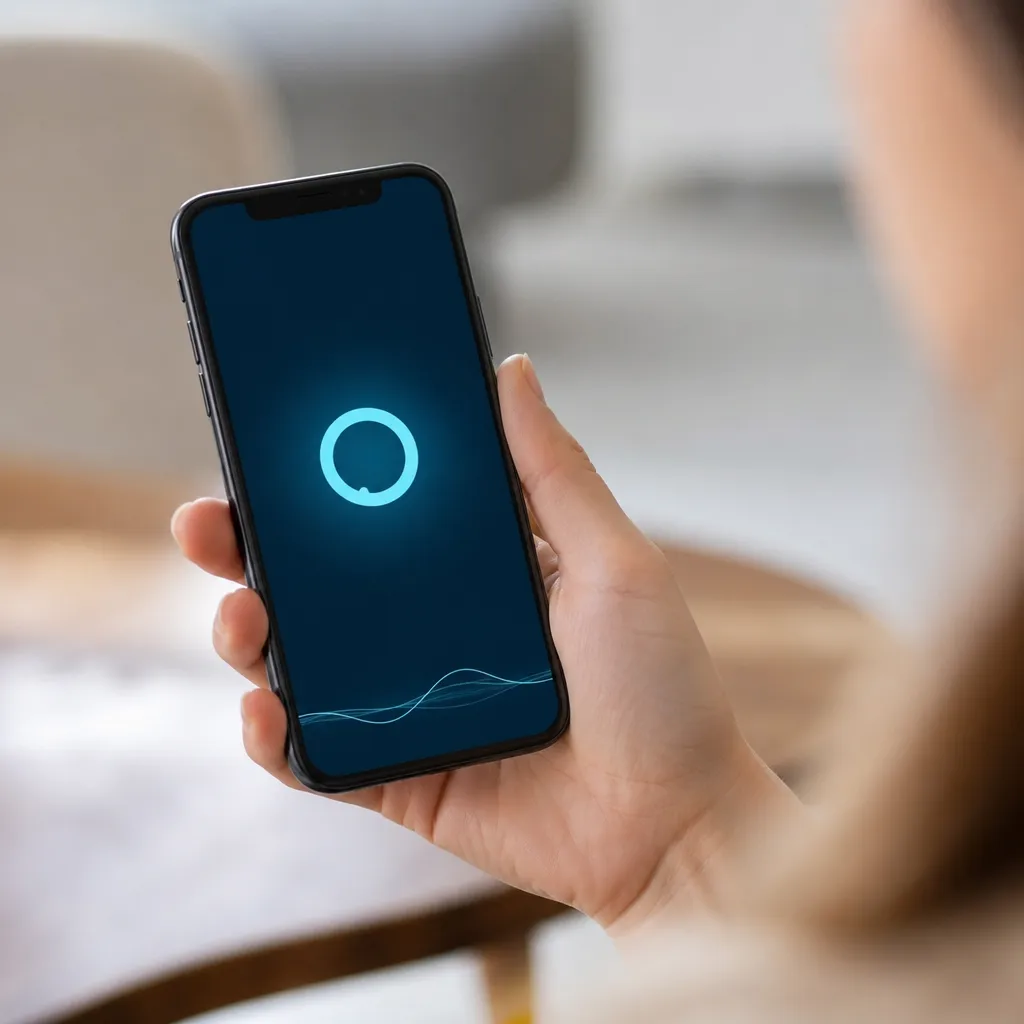
Once you’ve set everything up, you can start using Alexa via voice commands on your phone. Look for the microphone icon on the main screen of the app and hold while you order.You can ask for everything from simple information like the current time to more complex actions like adjusting the temperature of the smart thermostat or playing a specific song.
Alexa recognizes a wide range of natural commands, so you do not need to memorize exact phrases.If you say “Alexa, how much coffee costs”, the assistant will search for this information on the web. If you say “Alexa, turn on the room light”, the device will execute the command if you have a smart lamp set up. The more you use the assistant, the more intuitive and personalized it becomes for your specific needs.
Solving Common Problems
If you face difficulties to activate Alexa on your mobile, the first thing to check is your internet connection. Alexa completely depends on a stable connection to work, so if your Wi-Fi or mobile data are slow, the application will not respond correctly. Try to reconnect to your network or move to an area with better signal.
Another frequent problem is the microphone not working after activation. Check if you have granted permission for the application to access your phone’s microphone in the system settings. Sometimes the application may not have received this permission during installation, preventing you from using voice commands. Access your phone settings, find the Alexa app and make sure that the microphone is enabled.
If the application does not respond to voice commands or is too slow, try logging out of your account and logging in again. This forces the application to sync completely with Amazon servers and usually resolves connection issues.If the problem persists, uninstall and reinstall the application, as there may be a corrupted file preventing proper operation.
Tips to Make the Most of Alexa on Mobile
To get the most out of Alexa on your phone, start by exploring the Skills tab, which are additional features developed by third parties.There are thousands of Skills available for free that allow Alexa to do things like order pizza, hail a taxi, check airfare prices or listen to personalized news.The more Skills you activate, the more powerful your assistant becomes.
Consider linking your bank account or credit card in the app to shop via Alexa more securely and quickly. This is particularly useful if you regularly mind buying missing items at home, such as food or hygiene products. Alexa can reorder these products automatically, saving you time on repetitive tasks and ensuring you never run out of essentials.
Finally, set up reminders and alarms through the app to help with your daily organization. You can ask Alexa to remind you to take medications, pay bills or do important tasks. These reminders appear both in the app and in notifications from your mobile phone, ensuring that you will not forget anything important. With these simple practices, you will turn Alexa into a truly indispensable assistant in your day to day.