Turn your phone into an Alexa
Announcements
You can turn your phone into a smart device with features similar to those of a traditional voice assistant.There are several ways to do this, from using specific apps to setting up your smartphone to perform voice commands more advanced.
Announcements
This handy guide gives you a complete roadmap on how to adapt your phone to work as a smart assistant, allowing you to control devices, search and perform tasks using only voice commands.
Understand the Fundamentals of this Transformation
Turning your phone into a voice assistant works because your smartphone already has the necessary components: a sensitive microphone, powerful processor and internet connection.What changes is the way you configure and use these tools available natively or through applications.
Most Android and iPhone phones already come with built-in voice assistants, but you can leverage these features by installing additional apps that expand voice recognition and home control capabilities.This approach offers greater flexibility than a dedicated physical device, as you carry artificial intelligence with you at all times.
Set Up the Native Assistant for Your Device
If you use Android, Google Assistant is the ideal base to start this transformation. Go to your phone settings, look for “Applications and notifications” and then “Standard Assistance”. Select Google Assistant as your main voice tool. Then enable the detection of “Ok Google” in the application settings, which allows you to trigger the wizard without touching the screen.
For iPhone users, Siri works in a similar way, being activated by the side button of the device or by the command “Hey Siri”. Access the privacy settings and activate Siri completely, allowing access while the phone is locked. Both native assistants understand natural language, which means that you can ask questions in a conversational way without needing rigid and predefined commands.
Install Specialized Apps for Greater Functionality
In addition to the native assistant, you can install third-party applications that offer expanded capabilities. Google Home, for example, allows you to control smart devices in your home, play music and manage automatic routines. Download the application through the app store of your mobile phone, log in with your Google account and start adding smart devices that you own at home.
Alexa, developed by Amazon, is also available as a mobile application. After installing and logging in, you can use your phone to control smart lamps, televisions, security cameras and other devices compatible with the platform.Some specialized applications like Tasker offer advanced automation, allowing you to create complex routines that perform multiple actions with a single voice command.
Configure Smart Device Control
In order for your mobile phone to function as a true smart assistant, you need to connect smart home devices. Start by ensuring that your smart devices (lamps, sockets, thermostat, cameras) are on the same Wi-Fi network as your smartphone. Open the control app of each device and follow the specific pairing process, which usually involves creating an account or logging in.
After connecting all devices, integrate them with your voice assistant. In Google Home, tap the “+” icon to add a new device and select the correct category. In Alexa, go to the “Devices” option and choose “Add device”. Once all are connected and recognized, you can control them through voice commands such as “Enlarge the room light” or “Turn off the television”.
Create Custom Automation Routines
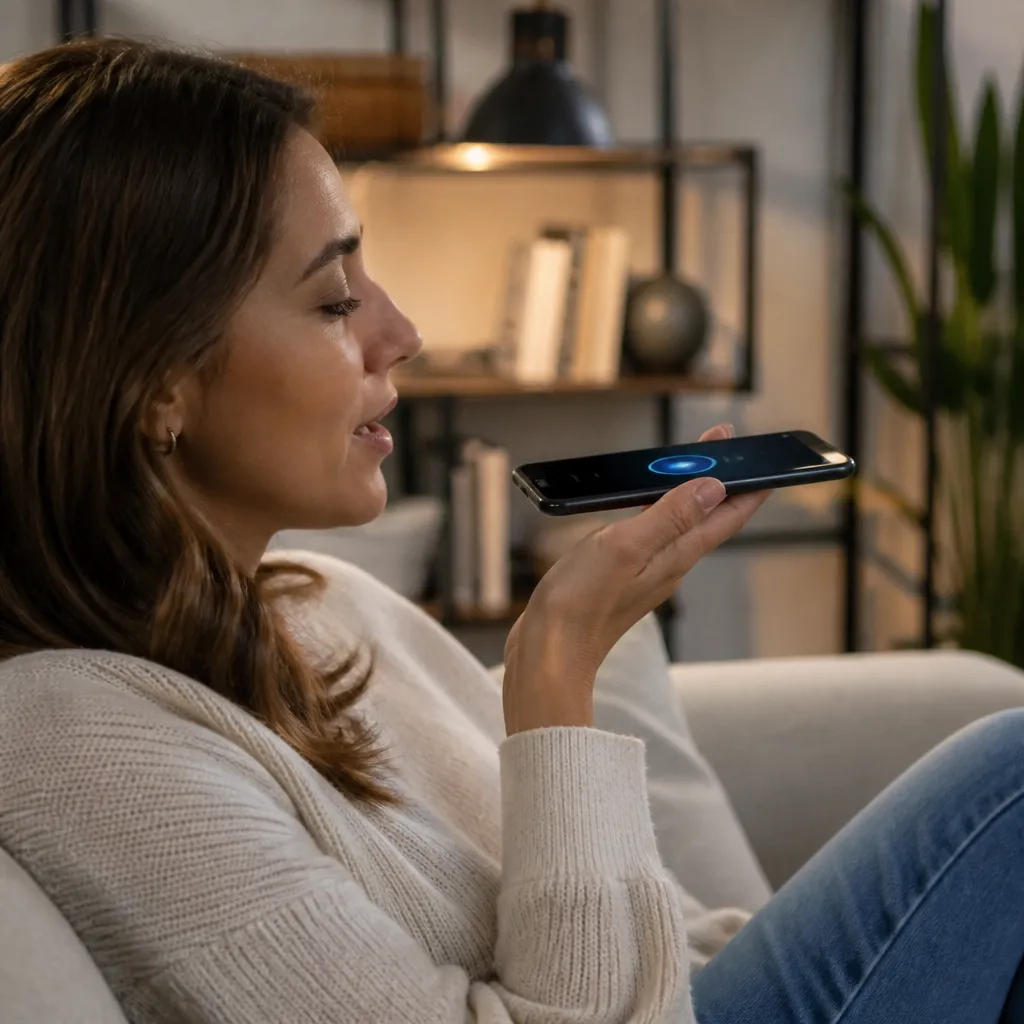
One of the biggest differentials between a configured phone and a dedicated assistant is the ability to create custom routines. In Google Assistant, go to the settings, search for “Routines” and click the “+” to create a new one. You can program a routine called “Good morning” that adjusts the lights, plays a specific playlist and reads the summary of the time when you speak the command.
Similarly, in Alexa, navigate to “Routines” in the app and set actions that occur when you speak a specific phrase or at pre-configured times. For example, create a “From Home” routine that turns off all lights, locks smart doors and arms the security system.
Optimize Voice Recognition for Better Accuracy
To make your phone better respond to your commands, train voice recognition with its specific characteristics.In Google Assistant, access the voice settings and follow the process of “Google Voice Recognition”. Speak natural phrases a few times so that the system learns your accent and speech patterns, significantly improving the hit rate.
Also, place your phone in a place with good acoustics when using the voice assistant. Avoid very noisy environments or places where there is a lot of echo, as this impairs understanding.Also adjust the language and dialect settings to match your location, which increases the accuracy in interpreting commands in Portuguese.
Leverage Advanced Artificial Intelligence Features
Your phone turned into a smart assistant can do much more than simply control lights and devices. Use it to do internet searches, answer complex questions, translate languages in real time, and even interpret images when combined with the phone camera.The Google Assistant, for example, can identify songs playing near you and provide information about plants or animals photographed.
Explore the capabilities of each assistant through varied and challenging questions. Ask about traffic before leaving home, request specific recipes, listen to personalized news or talk about topics of interest to you. The more you interact with the assistant, the more he learns your preferences and offers more relevant and useful answers for your day to day.
Maintain Security and Privacy During Setup
When you turn your phone into a device that is always attentive to voice commands, security becomes a priority. Set up a PIN or password to perform sensitive actions, such as making purchases or changing critical settings.In Google Assistant, enable identity verification in security settings so that only you can make purchases or access personal information.
Regularly review the permissions you have granted to voice assistant apps, especially microphone access, location, and contacts. Disable voice detection when not using the device if you feel uncomfortable, or use unique keywords that are not easily triggered by casual conversation.Keeping your smartphone up to date with the latest security versions also protects your privacy from known vulnerabilities.